

You can import your existing dashboards to Layerlog via a bulk process (using a Python script) or via a manual process.
Importing multiple dashboards via script
To enable easy migration, we created a Python script to bulk upload your Grafana dashboards to our platform.
Notes
- Bulk import is supported for Grafana version 6 and above.
- Dashboards that include annotations, notification endpoints, and other external resources are imported without these resources during bulk import.
- Custom selection of dashboards is not possible with bulk import. All of your dashboard folders are imported to a single folder within Layerlog.
- Grafana dashboards with schema version 14 or lower that include “row” objects are not added: You will receive a warning in the logs. We recommend that you update your dashboards to the latest version.
- The
p8s_logzio_namevariable is not added to panel queries that don’t include filtering: You will receive a warning in the logs. - Some panel types are not supported by the Layerlog platform. If your dashboard includes an unsupported panel type, you will receive a warning in the logs. You may experience some issues when the panel renders in Layerlog.
Bulk dashboard import procedure
From your Terminal, perform the following steps:
Clone the repository.
Use the following command to clone the repo:
git clone https://github.com/logzio/grafana-dashboard-migration-tool.git
Switch directory.
Use the following command to switch to the repo directory:
cd grafana-dashboard-migration-tool
Run the script and configure environment variables.
Run the following script and configure your environment variables:
python main.py # If python 3 is your default version
python3 main.py # If python 2 is your default version
Bulk dashboard migration configuration parameters
| Environment variable | Description |
|---|---|
| GRAFANA_HOST | Your Grafana host without protocol specification (for example, localhost:3000) |
| GRAFANA_TOKEN | Your Grafana editor/admin API key: Find or create one under Configuration > API keys |
| LOGZIO_API_TOKEN | Your Layerlog account API token: You can find the API token under Settings > Tools > Manage tokens > API tokens. |
| REGION_CODE | Your Layerlog region code: You can look up your region code here For example, if your region is US, then your region code is us |
For the dashboard import to work smoothly, you’ll need to change the name of the data source in your JSON file to the name of your Layerlog Metrics account.
Your Metrics account information is located in the Manage Accounts ( > Settings > Manage accounts) page of your Operations workspace. 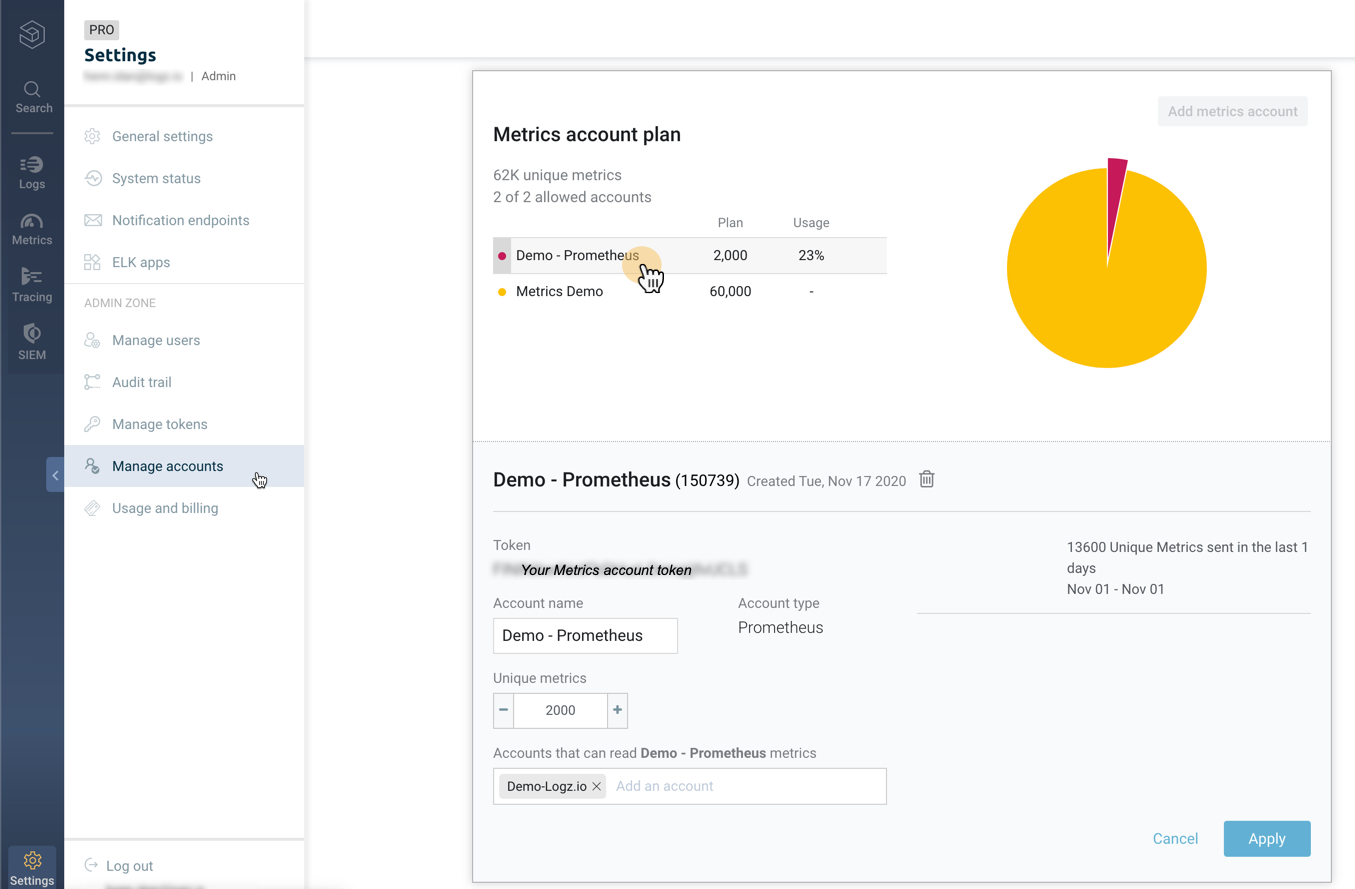
For the record, notification endpoints and dashboard annotations are not imported: You’ll need to recreate them in Layerlog. See Notification endpoints and Annotations for more information.
Importing individual dashboards
To import individual dashboards:
Navigate to the Metrics tab.
Log into Layerlog and navigate to the Metrics tab.
Select the Import option.
In the left navigation pane, click and select Import.

-
To import your existing Prometheus dashboards, first export the relevant dashboards as JSON files, then click Upload JSON file and select the files to upload.
For related information see Upload JSON logs.